

Chapter 4
Send for review
Check and send your listing to the Pepetho team, answer change requests, then start taking bookings once approved.
Listing step 6 is Check & send. The Pepetho team reviews every pet hotel before it shows in the app.
Sending the listing
- On Check & send, read the listing summary. Press Edit to go back to a step that needs fixing.
- When everything is complete, the heading reads "Everything is ready to send".
- Press "Send for review".
The Pepetho team reviews it, usually within 2 working days. No documents or bank account are asked for at this stage.
While it is in review
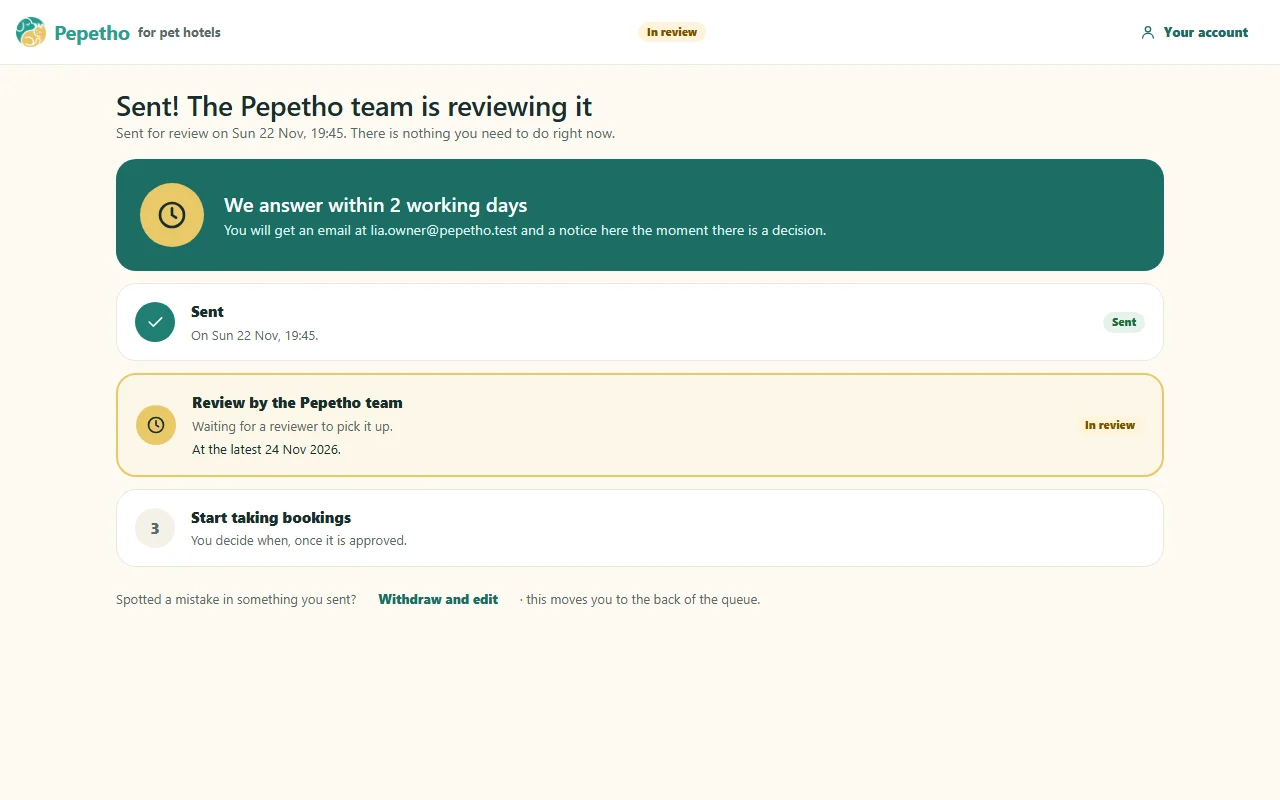
The waiting screen shows when you sent the listing and the date we answer by. There is nothing you need to do. The decision arrives by email and in the backoffice.
- The profile is locked during the review. Rates can still change.
- Spotted a mistake? Press "Withdraw and edit". The listing goes back to draft, and when you send it again it joins the back of the queue.
When something needs fixing
If something is missing, the screen names the parts that need fixing, with a note from the reviewer. Everything else stays as you sent it.
- Press "Fix ..." on each part marked "Need to fix".
- Change it.
- Once every part is fixed, write a reply to the reviewer if you like, then press "Send again".
Resubmissions are reviewed before new sign-ups.
Once approved
Once approved, you choose when to start taking bookings. Bookings, Calendar, Earnings, Reviews and Team open on the day you go live.
Listing status
- Live on Pepetho: pet owners can find and book you.
- Paused: the listing is hidden. Turn off Taking new bookings in Hotel profile to pause. Paid bookings carry on. Turn it on again at any time.
- Suspended by the Pepetho team: the listing cannot be booked or changed. Reply to the Pepetho team's email to talk about it.
- Not approved: the reason is on the screen. Where allowed, press "Correct and apply again". Think we got it wrong? Press "Ask for a second look".